Tuesday, September 27, 2011

Blue Yeti Pro in the House


2011-09-27_13-42-42_338

The kind folks at Blue have lent me Yeti Pro to test drive, and I can’t wait to see what this thing can do.  With dual outputs (USB and XLR) this mic should be equally at home in the teaching studio plugged directly into the tablet via USB, and in the rehearsal studio plugged into the big audio rig via XLR. 

Thursday, September 22, 2011

Blue Microphones Announces the Yeti Pro–USB and XLR!

YetiPro_Mac_Laptop_Ringer

I’ve been using the original Yeti in the studio and at home since it came out.  My husband recently “borrowed” it for recording at his band’s rehearsal studio.  I hope it makes it home again some day, but it might get to stay there now that Blue has announced the new Yeti Pro. 

YetiPro_ThreeQtr_Y-CableI did get to see the Yeti Pro at CES, but I didn’t get information on when it might be released, but now it’s official.  Our only complaint with the original Yeti was that it was USB only.  While that’s okay for me, since I mostly work from a computer, my husband has a full set-up and would prefer an XLR connection. 

Enter the Yeti Pro – dual outputs, USB and XLR!  It looks just like the original Yeti, but in black.  It has the same triple array custom condenser capsules that can record in cardioid, omni, stereo, and bi-directional.  It records at 24bit/192kHz, the highest digital resolution on the market. 

The Yeti Pro is available now from authorized Blue Microphone dealers with an MSRP of $249.  See the full press release after the break.

Saturday, September 10, 2011

The Gigging iPad Caught on Camera

As promised, I remembered to take a picture this time. I was also able to start a draft of this post during the ceremony thanks to a new tool/toy,but more on that later.  It turned out to be the shortest ceremony ever, so I only got one sentence done before the pronouncement. The only thing after that is presenting the new couple, then it's recessional time.

A side note - we set up in the back so no one could see me thumb typing away, and I was still the first member of our group to notice we needed to be ready to play. The ceremony is always priority. I try to be really careful to make sure my toys don't become a distraction.

So that new toy? It's really just an upgrade on a current one. I picked up an HTC EVO view.  It's basically the exact same thing as my Flyer, but with a 4G radio from Sprint.  I was tethering from my phone when I wanted to be online, but that's a hack so I try to avoid doing it too much. It's great to have always on internet on the tablet.  In fact, that's how I'm posting this, well out of WiFi range, from the Blogger app on the View. I also took this picture with the View, making it easy to add to the blog post. I'm getting pretty good at thumb typing.

It's making me think I should pick up a 3G iPad for gigging whenever the next version comes out, but there's something to be said for separating tasks. I wouldn't want a notification popping up while I'm playing. Then again, I could just turn that off while I'm playing. Hmmm....


Saturday, September 3, 2011

Digital Trio Gigging: An iPad, ForScore, and the Footime Pedal


I keep forgetting to take pictures of the iPad in action, but you all know what an iPad looks like.  My recent digitizing efforts have paid off as I've now played several weddings from the iPad.  

Before I get into the successful weddings I've played with an iPad in front of me, I should also mention that I've run into my first real bit of resistance to digital music.  I've had open minded stand partners that were willing to work with me and try out the digital scores.  I think that was made easier by the ease of using an active pen with windows; there was no learning curve to putting notes in the music.  But last weekend, I had a conductor tell me that he would not allow me to read from the iPad.  There was no good reason other than he was not comfortable with it.  Last I checked, he didn't have to read my music, but whatever, I had my paper parts as back up (which required windclips and a stand light, neither of which the iPad would have needed).  After the conductor told me I could not use my iPad, he also noticed the bassist was using one as well and tried to tell him it was not allowed.  After explaining that he would have gladly made a book had the conductor said something after the previous rehearsal (that I had to miss) where he had also been working from his iPad, he got to keep his. 

But back to happier stories.  I just got back from yet another wedding gig with my trio, playing from the iPad, and I will never go back to the paper books.  There are several reasons:

  1. Only one thing to carry.  I guess it's actually two things, since I have the foot pedal also, but it sure beats a dozen gig books and miscellaneous photocopies.
  2. Hands free page turning.  I've been known to put paper on the stand (for things I haven't scanned yet) and stomp on my foot pedal, wondering why it won't turn.  Seriously, it's so easy to turn by foot pedal.  And not having to put the instrument down and bend forward to turn the page is a huge back saver.
  3. It's cool, which means memorable.  I know, it's like drinking the Kool-Aid, but guests come up to me after the wedding to ask about it, which means they'll remember us, and hopefully book us again for the baby shower. 
  4. The time is in my face.  We are booked by the hour.  We used to always be checking our cell phones in between songs to see how much time we had left.  Now I'm looking at the time whenever I'm looking at the music.

But I'm such a huge advocate for windows based tablets with active digitizers, why am I using an iPad?  Also, several reasons:

  1. Battery life.  Most gigs are only booked for 2 hours, which would easily be covered by any of my machines, but it's nice to have battery life to spare and not ever have to worry about it. 
  1. Single purpose software for a single purpose application.  When you're playing a gig and all you need to do is read the music, you don't need a full blown desktop OS running in the background.  Sometimes you don't want to multitask.  Although, I should admit that I've managed to crash ForScore on occasion.
  2. Lightweight.  It's the lightest weight thing I have that's big enough for music reading.  Yes, that 1lb does matter.
  3. Touch navigation.  It really is way nicer than having to pick up the pen to select the next piece.  I'll be keeping an eye on the dual digitizer pen and touch windows tablets, but nothing out right now fits the bill.  The Asus EP121 lacks the battery life, and even the new Samsung tablet at 11.6" widescreen will still likely be too narrow in portrait mode.   
  4. The gig books are already small.  One of the main reasons I turn to my Lenovo x61t for orchestral music is that orchestra music is printed on bigger paper.  Shrinking that down to iPad size makes it very difficult to read.  12" is also much easier when you need to share a stand.  With careful cropping, the gig books, which are already only 8.5"x11" do just fine on the iPad's smaller screen when I don't have to share it. 
  5. Half page turns.  I need to look into a program that will do this on Windows, but I have to say, I am getting spoiled by ForScore's half page turns.  It's very convenient to flip to the top half of the new page while still looking at the bottom of the old page.  It means there's never a time when the next thing I need to play isn't already showing on the screen
  6. No markings.  It's gig music.  I don't really need to mark it as much.  I'm also getting more used to ForScore's system of stamps for easy and clean markings when I do need them.  I wouldn't ask a stand partner to learn to use stamps, but they're good once you've gotten used to them.
  7. People already know what an iPad is.  It may be petty, but it's true.  There are times I just tell people I play the violin when I don't feel like explaining what a viola is, again.  Sometimes it's just easier to say "yes, I'm reading from an iPad" rather than explaining that it's actually a something different.

All in all, I'm really enjoying the iPad for use with my trio.  Our violinist is also seriously considering the setup as well.  He has an iPad and is looking into getting a foot pedal.  Our cellist has declared the iPad way too small for her, and wouldn't be comfortable having to read from it.  We are always in shade for outdoor gigs (contractually as direct sun would be bad for the instruments) but I have run into some glare issues.  It's only been annoying reflections though, nothing unreadable with the brightness all the way up.  I'm considering a matte screen protector, but I have a hard enough time getting those right on a phone.  We have too many cats for me to get 10" of screen protector down without getting a cat hair stuck under it. 

So that's what I've been up to, and will be up to for the next several weekends.  I'll try to grab some pictures next time.  

Saturday, August 20, 2011

Creating PDF Sheet Music v2

With the new release of ForScore for the iPad, I've been re-inspired to work on scanning more of my music.  After all the linux fun that was had at the Partimus install day I've also been inspired to work in Linux more.  So I've been playing with some new tools to turn my music into PDFs.  

In windows, I still use Windows Fax and Scan to do the initial scanning.  The included Document preset is good.  I like to scan at 300 dpi.  Going down to 150 dpi results in jagged staff lines, which I find distracting.  Fax and Scan also has an easy cropping tool.  Since I’m preparing these gig books for reading on the iPad, trimming out the extra dead space is essential to maximizing the size of the actual music.

cropped scan

From there, if I were creating a Journal file to use on just the Windows tablet, I would paste the scanned images in page by page.  This has worked fine for shorter piece, but this time, I wanted to scan serveral 40 page gig books for just reading as PDFs on the iPad.  Finding a program that will turn the scanned images into a PDF should be an easy google search, but most of what comes up are trialware programs that will leave a watermark during the trial and then cost $30 or more to buy.  The thing is, I haven't found one that's worth it.  They've all been clunky or buggy during the trial and I've not found one that I've wanted to keep using.

Until I stumbled upon a little free utility.  The download is just  a zip containing the exe, you don't even have to install it - just as it should be; a simple program for a simple task.  The utility imports the scanned images by folder.  A little rearranging later and you're ready to export the PDF.  I've found that this one even generates the PDF much faster than the trialware options, and even exported some larger ones that the trialware errored out on.  

jpg to pdf tool

From there, the PDF goes into Dropbox to be made available to any machine I would want to read it from.  Conversion to a Windows Journal file is as easy as using the Journal Note printer from any PDF reader.  (Journal installs a virtual printer that can be accessed from any program).  This will still get me to a Journal Note faster than pasting each image into a page.  With the PDF in Dropbox, I can also open it from ForScore or UnrealBook on the iPad.  

Another great scanning tool was put into use this weekend when an orchestra sent practice parts as copies on loose paper.  That presented the perfect opportunity to test the NeatDesk autofeed and PDF creation tool.  The NeatDesk can feed through up to 50 loose sheets front and back and turn them into a PDF.  It's great to set all the pages in the NeatDesk, press the PDF button and let it do its thing.  The only problem that came up was that it decided that page 4 (of nearly 30) should be landscape.  All of the other pages came out oriented correctly, but page 4 would need to be rotated.  I just use the free Foxit reader in Windows, and that will only rotate the entire file, not a single page.

A google search for PDF tools turned up the same mess of trialware that may or may not actually do that one simple thing I needed - rotate just one page and leave the rest the way they were.  

This is where I go to Ubuntu.  I had also been playing with scanning options there.  A search for PDF in the Ubuntu software center yeilds lots of helpful tools, all free and open source.  In addition to the already installed scanning program, I found a JPG to PDF conversion utility, a scan to PDF program, and two tools that allow you to rotate, rearrange, add, and delete pages within a PDF.  Both tools were fast, simple, easy to figure out, and did exactly what I needed with zero hassle - allow me to rotate one page while leaving the rest alone.  After the mess of results google gives for windows software, it was refreshing to search for "PDF" and get these two great utilities as the top two results in the Ubuntu software center.
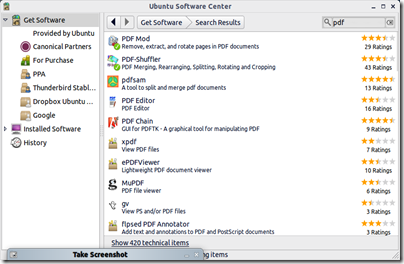
Screenshot-Ubuntu Software Center

Screenshot-PDF-Shuffler

Xournal does an equally good job in linux of importing and annotating PDF's.  The only drawback vs Journal in Windows is that I don't yet have it set up to see the eraser end of the pen as the erase, so you have to select the eraser tool from the menu bar rather than just flipping the pen over.  I have not yet tested it with the foot pedal, but as it just sends page up or page down, I'm sure it will work fine.

Ubuntu actually runs faster and lighter on my hardware (Lenovo x61t), and would make a good option for both scanning and reading music.  The other two drawbacks I've run into are that Neat does not provide linux drivers for their scanners and there are no open source ones available, so I'd have to manually swap pages on the flatbed scanner, and that battery life is a little less under Ubuntu than when running Windows.  

But now I have several options for turning my paper music into PDFs using free tools.